Creating Custom Reports in Shopify
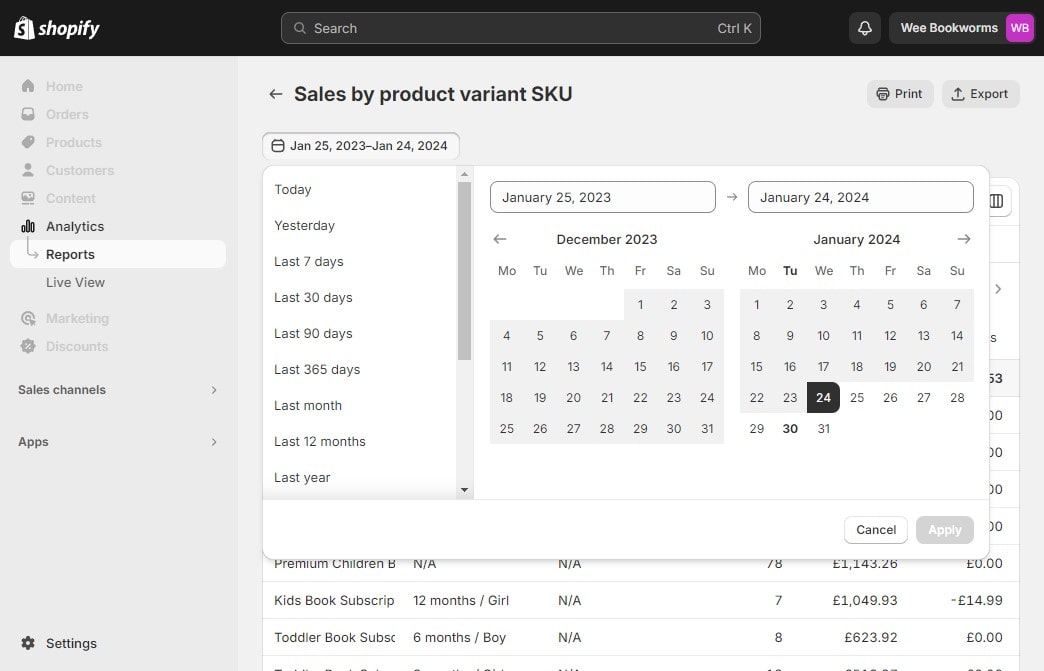
Custom reports in Shopify are invaluable for tracking and analyzing key data in your online store in 2024. By Creating these reports, you’ll uncover insights into sales trends, customer behavior, and inventory management tailored to your unique business needs.
How to Create Customized Reports in Shopify
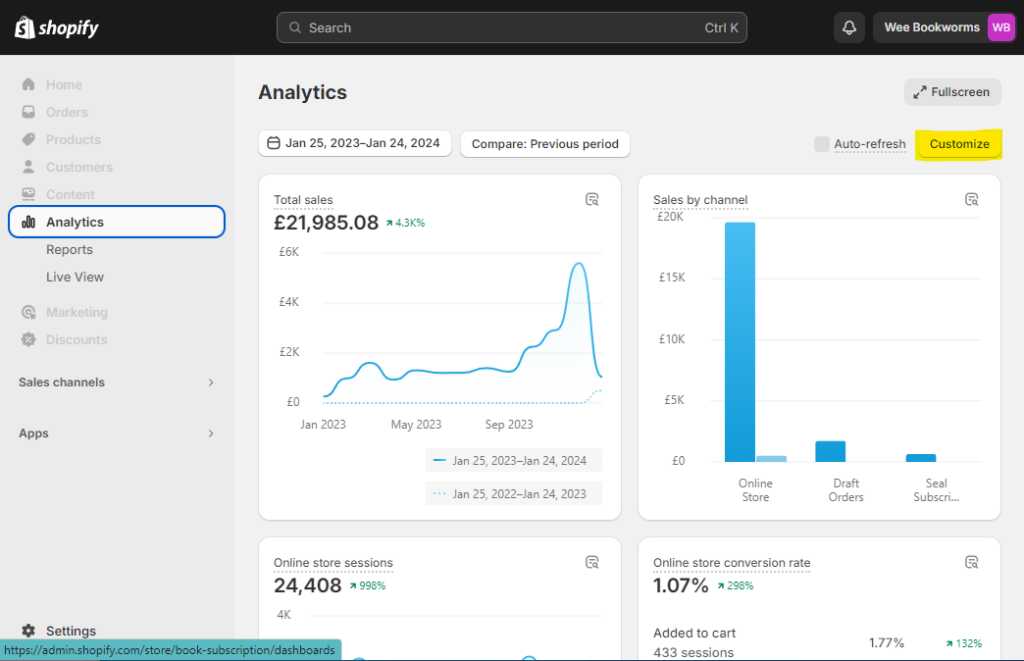
Step 1: Go to Analytics on your Shopify store
To access the Analytics feature on Shopify, simply log in to your account and locate “Analytics” on the left-hand side of the screen. The system will display the Dashboard automatically.
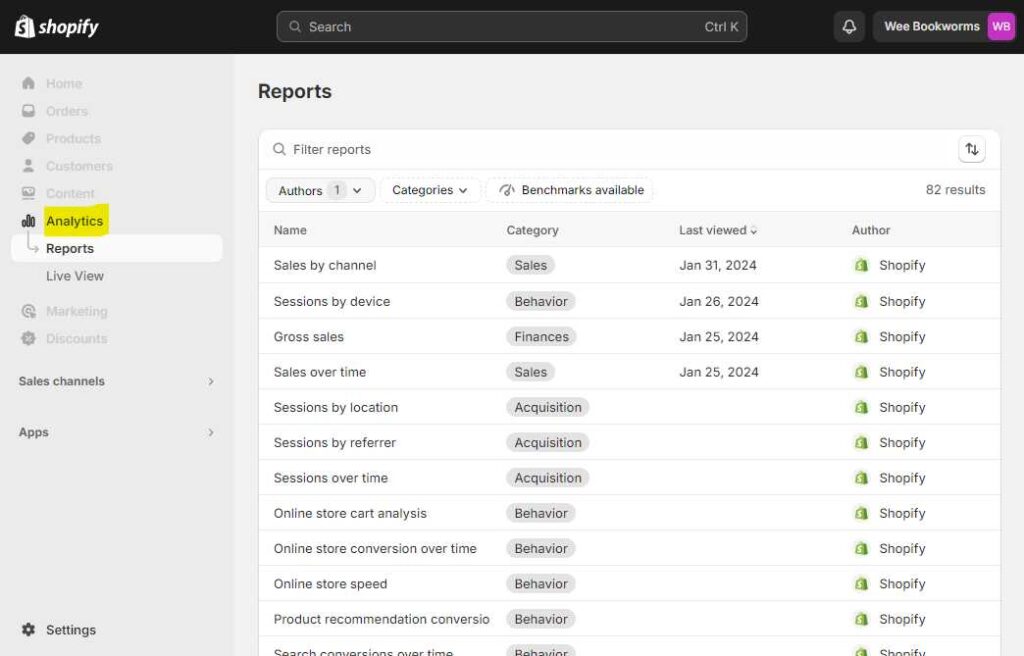
Step 2: Click Create custom report
From the Reports page. Locate the “customize” report button at the top right of the page and click on it.
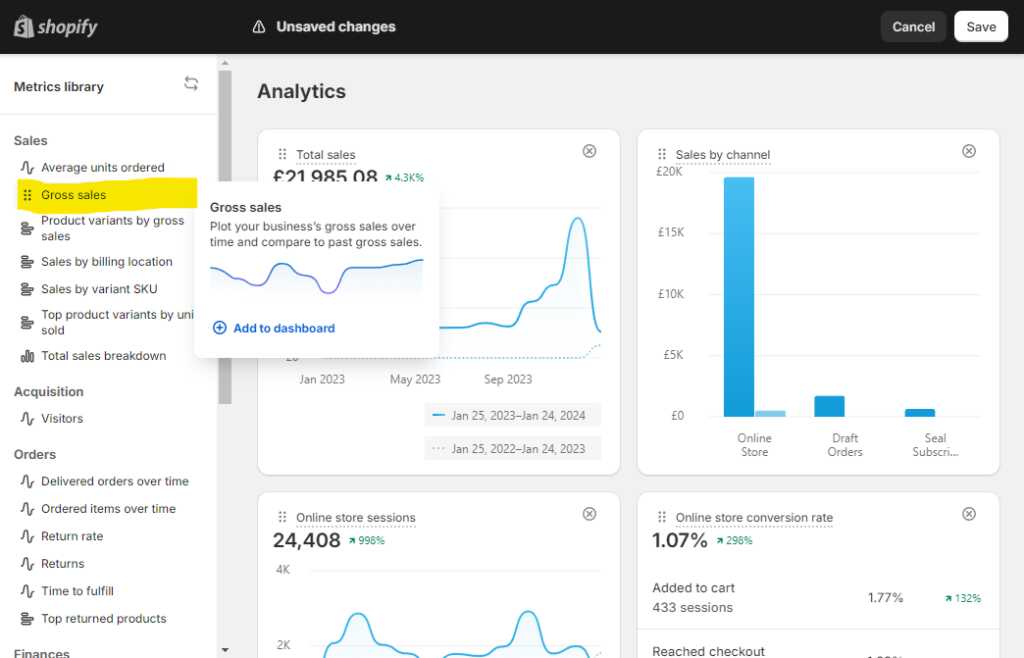
Step 3: Choose the report
You will choose a report to start with by selecting it from the left hand menu. Simply tap on the name of the report you want, such as Gross sales. For example, I clicked on Sales over time.
Step 4: Scroll down to find your report
The report has been added to the Dashboard and is the last report in the list. You can find it at the bottom by scrolling down, and you have the option to rearrange it on the dashboard by dragging and dropping it.
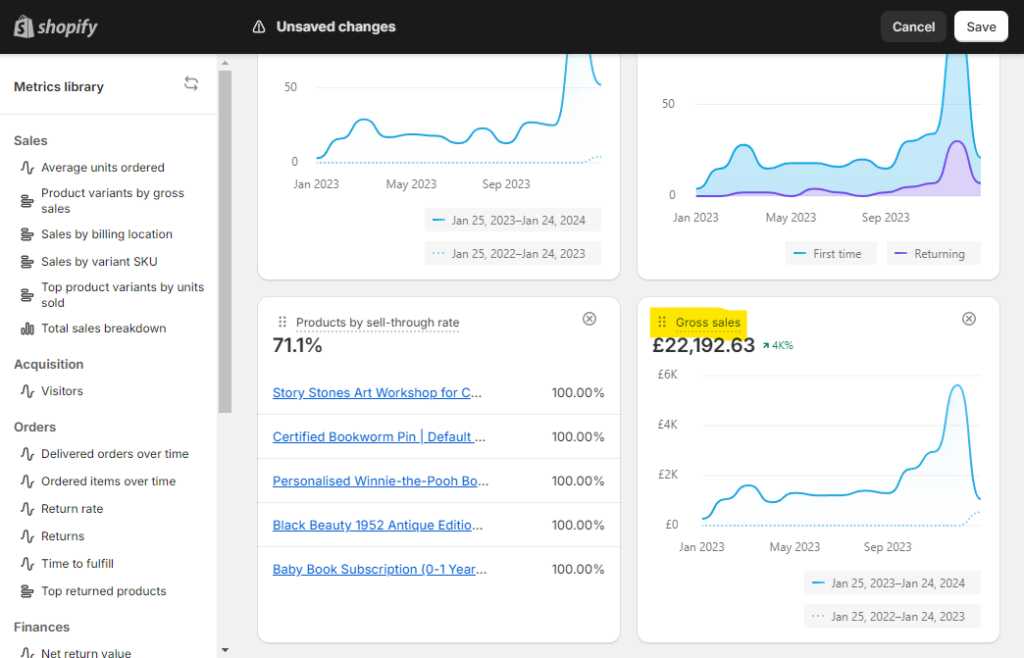
Step 5: Click save report
To save your changes, click the Save button located on the top right corner. The report will then be visible in your dashboard going forward.
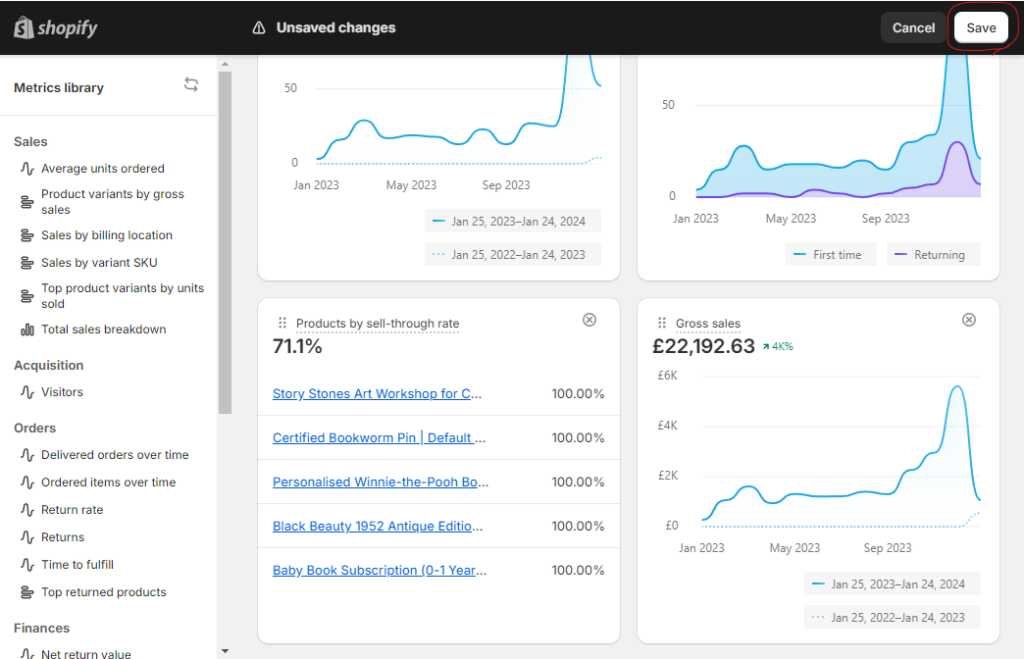
Managing Custom Reports
Once a custom report has been created, the details of the report can be modified or viewed as needed by clicking the view report icon in the top-right corner.
On the View report page, users have the ability to customize the date range, select the sales channel, and export the data, if necessary.
View custom reports
The list of custom reports that have been created and saved can be found on the Report page of your Shopify admin.
Filtering a list of custom reports
All custom reports are considered to be user generated, rather than being authored by Shopify. The author’s name is listed in the Author column of the Reports list.
If relevant, you can further filter the list by the staff member who authored the report.
Staff permissions for custom reports
Store staff member with Analytics permissions have the ability to access, duplicate, and modify any reports that you create or modify.
Gain a deeper understanding of staff analytics permissions.
Summary
The tutorial provides detailed instructions on customizing reports, allowing you to create your own report specific to your store. For additional guidance on working with reports in Shopify, see our post on adding columns.
Related guides
More on this topic from the By the Numbers team:
- Shopify Analytics App Benefits You Should Know
- Shopify Analytics App Checklist to Use Before Buying
- Shopify Analytics Features That Actually Matter
- When To Upgrade Reporting Tools In Shopify
By the Numbers builds this into the dashboard. See Shopify analytics reporting.
See what is working in your Shopify store
By the Numbers turns your store data into reports, segments, and forecasts.
- AI-powered analytics
- Customer segmentation
- Predictive forecasting
- One-click Shopify install