Set up Shopify reports from a conversation

You know which numbers you want to review, but the dashboard and recurring report still need setting up. To set up Shopify reports in By the Numbers, you can now ask Copilot for a dashboard or scheduled export. It drafts the setup in chat, and you choose whether to save it.
That leaves the decision with you. A request starts a draft; saving it makes the change. Start with the review you want to repeat, then choose the setup that supports it.
Start with the decision you need to make
Choose a question before choosing a dashboard. For a sales review, that might be: are sales growing while returns stay manageable? For a customer review, it might be: which buyers should we try to bring back?
If you want a report inside Shopify itself, open Analytics, then Reports in your Shopify admin. Shopify's reporting guide explains that native route. The workflow below happens in Copilot inside By the Numbers.
A dashboard suits a question you expect to revisit. A scheduled export suits a report someone needs to receive regularly. A segment suits a group of customers you want to reach.
For help choosing the measures first, use our Shopify analytics guide. Keep the first setup narrow enough that you can explain what decision it should support.
Ask for a dashboard you will use again
Describe the dashboard you want in plain language. For example: “Create a dashboard with sales, sales by channel, and return rate.” This is a request you can adapt, rather than a suggested target for your store.
Copilot drafts the dashboard in the conversation. Before saving, check whether the proposed reports answer your original question. Sales by channel can help you decide where to look next; return rate keeps returns in the same review.
Treat the draft as something to check, rather than a reason to add more reports. If a report would not affect a decision, leave it out of your first dashboard. A focused view is easier for a teammate to understand when you discuss what changed.
The Copilot feature page explains the conversation behind this workflow. The new setup option extends that conversation into something you can save and use again.
Choose the next setup for the job
Copilot can also draft a segment, goal, chart note, scheduled export, or segment sync. Choose the one that addresses the unfinished task in your review.
For a goal, decide the target and period before making the request. For a chart note, decide which event matters and when it happened. For a scheduled export, decide which report the recipient needs and how often they need it.
Suppose the review turns into a customer follow-up task. Describe the customers you want in a segment, then review the proposal before approving it. If you also want a segment sync, check the destination carefully.
The screenshot shows an approval card for a proposed segment send. Look at the proposed group and destination before the approval controls.
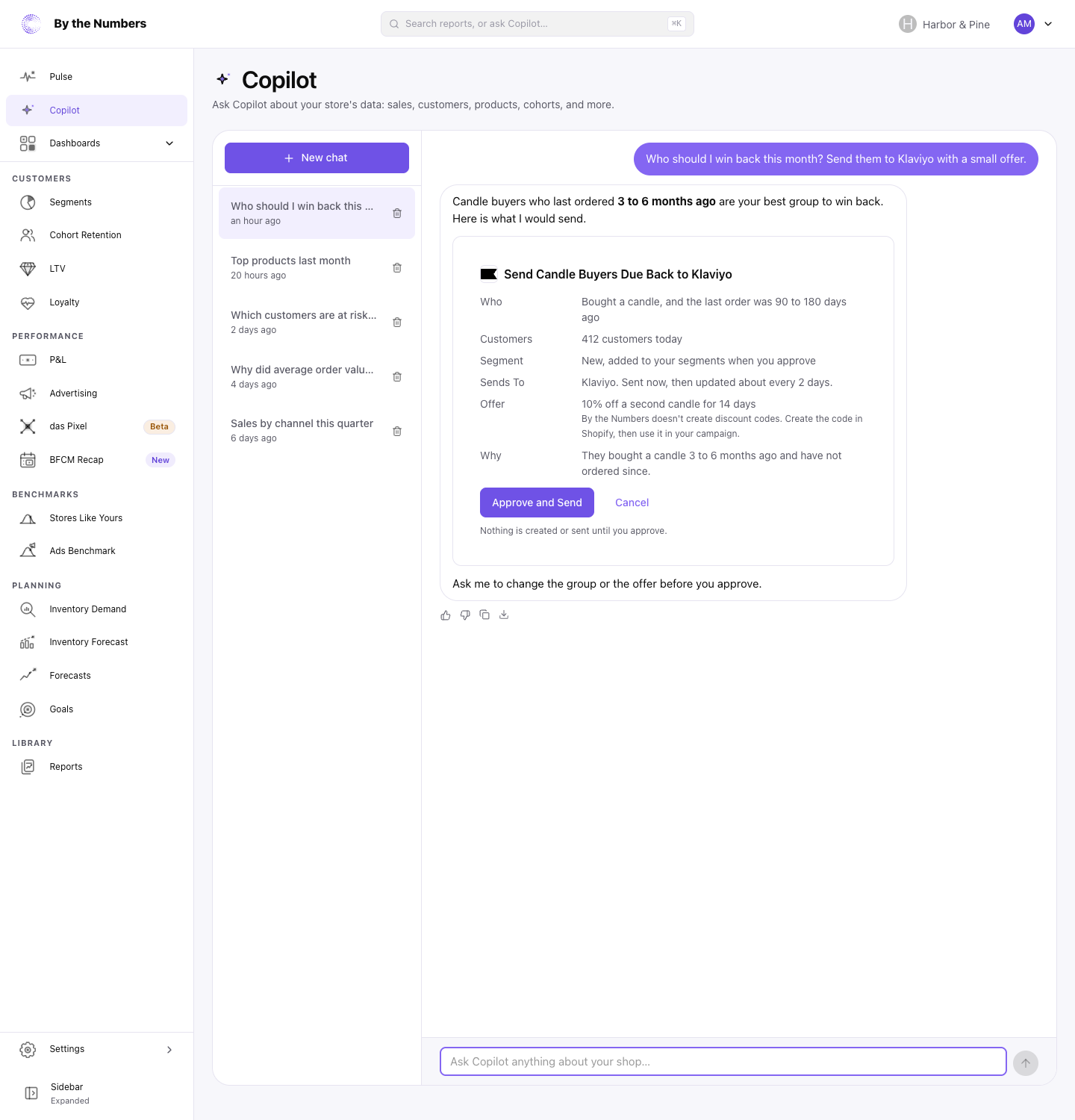
Use the Copilot help article for the setup buttons and segment approval steps. It explains the workflow shown here, including the choices to review before a send.
Choose a follow-up because it serves the review, rather than because another setup is available. A sales dashboard may need a chart note for context. A customer review may lead to a segment. A recurring reporting meeting may need an export instead.
Review the setup before you save
Check the proposal against the task you meant to delegate. The request is only the starting point; the saved setup needs to match how you plan to use it.
Before saving, ask:
- Does the dashboard contain the reports needed for this decision?
- Does the goal name the intended measure, target, and period?
- Does the chart note describe the right event and date?
- Does the export use the intended report and schedule?
- Does the segment describe the customers you meant to reach?
- Does the sync point to the intended destination?
Save when those details match. Then use the setup in your next review and decide what needs attention. A dashboard helps you keep the question visible; the business decision still needs your judgment.
If the dashboard is for a recurring meeting, our monthly reporting pack helps structure the discussion. If you are deciding which reporting task to change first, see where to start with Shopify reporting limits.
Begin with the task you have been putting off: a dashboard, a goal, or a recurring export. Ask Copilot to draft it, check the details, and save the setup you intend to use.
Keep reading
If you want the full picture on Shopify analytics and reporting, start with how to set up Shopify analytics.
Related reading: Shopify reports limitations: What to change, The New By the Numbers Arrives December 8 and Agency Reporting for Shopify Clients: A Template and Its Pitfalls.
By the Numbers builds this into the dashboard. See Shopify analytics reporting.
See what is working in your Shopify store
By the Numbers turns your store data into reports, segments, and forecasts.
- AI-powered analytics
- Customer segmentation
- Predictive forecasting
- One-click Shopify install