Are you on track to hit your Shopify sales goal?

To track Shopify sales goals, check whether you're on pace and what the remaining days need to deliver. The revised Goals page in By the Numbers puts both answers beside your target. It also suggests targets from your store's history, so you have a starting point when choosing the next goal.
That helps when sales are coming in, but you still can't tell whether the month is going well enough. A growing total tells you what happened. A goal gives that total a deadline and a reason to act.
Check pace before changing the plan
Start with the goal's pace and remaining requirement before deciding to change an offer or increase spending. The revised page shows whether each goal is on pace, what the rest of the period needs, and how past periods finished.
Read those together. Being short of the full target partway through a month is different from being behind pace. The useful question is whether the remaining requirement looks practical given the stock, campaigns, and time you have left.
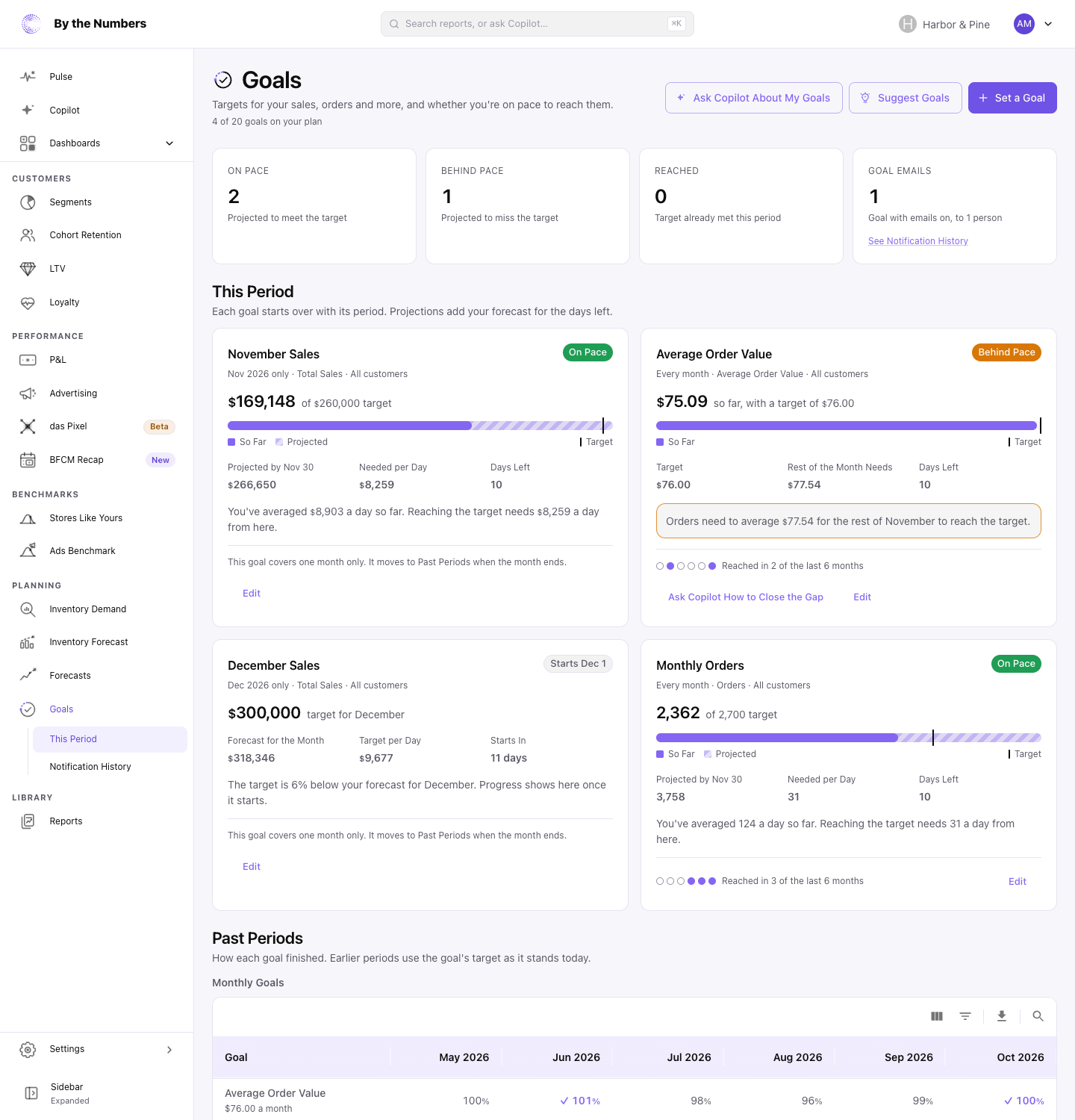
A goal card gives you a place to start investigating. It does not explain why sales have slowed or prove that a promotion will close the gap. Check the products and campaigns behind the result before choosing a response.
You can also track targets inside Shopify. Its guide to targets in Shopify reports explains setup, progress gauges, and cumulative views. Use that route if it answers your question; the workflow here focuses on the revised Goals page and its historical suggestions.
Choose a target your history can support
Use your own past periods to judge whether a target is a sensible commitment. Set a Goal compares the target with your store's history, while Suggested Goals offers targets your store has reached before.
Start by choosing the number you want to improve. Sales is a useful starting point when the decision concerns revenue. Orders may be more helpful when you want to focus on purchase volume.
Then choose a weekly, monthly, quarterly, or yearly period. Match it to the decision you expect to make. A month can suit a trading review; a quarter may suit a broader sales plan.
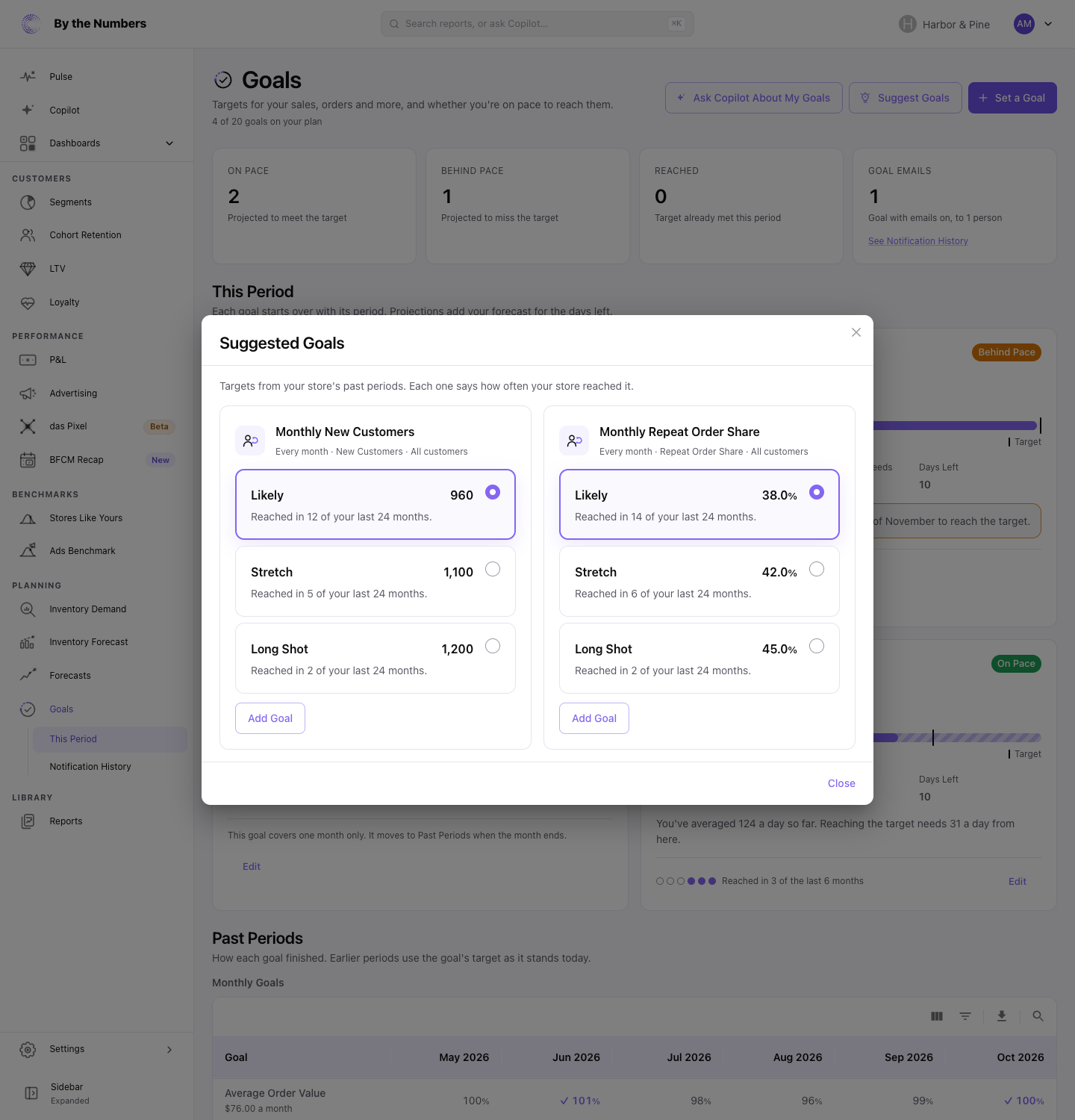
A target reached before is context, rather than a promise about the next period. Consider whether the earlier period had a launch, promotion, or stock availability you won't repeat. Choose a target you can explain alongside the actions intended to support it.
Start with one sales goal
Open Goals under Planning, then choose Set a Goal. Select what to track, choose the period, and set the target. You can make the goal repeat or apply it to one period only.
Keep the first goal close to an actual decision. For example, use a sales target for a planned promotion month. A repeating target can suit a routine review when the same commitment still makes sense.
The Goals setup guide walks through the controls and explains how to change a goal later. Follow it when you're ready to save your choices.
Goals are available on Free as well as paid plans. Free stores can set goals on Total Sales or Orders. Current paid plans support the broader goal choices where the store has the relevant data. Check the Goals page for how many goals your plan holds.
The forecasting and goals overview explains the related planning tools if you also want to look beyond the target itself.
Turn the remaining gap into a decision
Use the remaining requirement to choose one action you can carry out, then review what happened. Suppose your sales goal is behind pace before a planned email campaign. First check whether the products in that email are available and whether the offer leaves enough margin.
If stock is tight, sending more traffic may deepen the problem. Review inventory planning for Shopify before expanding the promotion. If products are available but demand is slow, product sales velocity can help frame the next question about what is moving.
A discount is one possible response, with a cost to margin. Another is to feature an available product more prominently in a campaign you already planned. Pick the response that fits the constraint you found, rather than reacting to the status alone.
Your weekly email also says where your goals stand. Use it to bring a specific question to the team: what does the period still need, and what can we reasonably change?
Start with one goal, inspect its remaining requirement, and agree on the next action. That turns the target into a decision you can revisit before the period ends.
Keep reading
If you want the full picture on sales forecasting, start with how to forecast Shopify sales.
Related reading: Dead stock: Spot it before cash is tied up, How to Set a Reorder Point for Shopify Stock and Sales Forecasting Methods and Techniques for Shopify.
By the Numbers builds this into the dashboard. See sales forecasting.
See what is working in your Shopify store
By the Numbers turns your store data into reports, segments, and forecasts.
- AI-powered analytics
- Customer segmentation
- Predictive forecasting
- One-click Shopify install