Shopify sales showing as Direct? Try das Pixel

Shopify sales showing as Direct usually mean Shopify could not tell where the shopper came from, not that your ads failed. At the same time, Meta and Google Ads each claim more sales than Shopify recorded. das Pixel, By the Numbers' own tracker for your storefront, shows which of those Direct sales followed a paid ad click. It is now an add-on you can start yourself, with a 42-day free trial.
Why Shopify files ad sales as Direct
Direct is where Shopify puts an online order when it can't read a source for the visit. It is a fallback, not a channel. Shopify's marketing reports credit the last source they can read that isn't a direct visit, so an order lands in Direct only when the journey Shopify saw had nothing else.
That happens more often than most merchants expect:
- The shopper came back later. They clicked your ad, left, and returned days later by typing your address or opening a bookmark.
- They switched devices. They clicked on a phone and bought on a laptop, which Shopify sees as a new visitor.
- The link carried no tags. A text message, a podcast note, or an email app that drops the referrer leaves nothing to read. Consistent UTM naming conventions fix the links you control.
- Something stripped the source. A redirect, a link shortener, or an in-app browser can drop the click ID before the shopper reaches your store.
- They declined cookies. Without consent, the visit carries no referrer to keep.
Some orders never had a visit at all. In-store sales, draft orders, and subscription renewals skip the browser entirely, so they have no visit for Shopify or a tracker to read. For an online order, the conversion summary on the order page in Shopify shows the visits Shopify did record.
Why your ad platforms claim more than Shopify recorded
Ad platforms count conversions by their own rules, so their totals run higher than Shopify's. They can count people who only saw an ad. Platforms also estimate purchases they can't observe and match shoppers across devices.
Each platform also uses its own window. The attribution window decides how long after a click a platform keeps claiming the sale. And each platform claims credit on its own, so Meta and Google Ads can both count the same order.
So you end up with two numbers that will not match: a Direct total in Shopify that is too large, and platform totals that add up to more sales than you made. Platform ROAS is built on those claims, which is why it pays to know how to calculate ROAS from your own figures. Switching between attribution models moves credit around, but it can't tell you which Direct orders an ad touched. For that you need a record of the click, tied to the order.
See which Direct sales followed a paid ad click
das Pixel is a first-party tracking pixel installed straight into your Shopify storefront. It records visits and checkouts under each shopper's own consent choices, and links each purchase to its Shopify order.
Its headline report is Direct Sales Traced to a Paid Ad Click. It shows the online store sales Shopify filed as Direct, or left with no source, where das Pixel saw the shopper click a paid ad in the 30 days before buying. The figure sits against your whole Direct total, with the share of orders das Pixel could match, so you can judge how much it covers.
You don't have to take the number on trust. Orders Behind This Number lists the orders behind it, one row per order, each linked to the order in Shopify. Each row names the platform, the campaign where the click named one, the days between click and purchase, and whether it was the customer's first order. The guide to Direct Sales Traced to a Paid Ad Click explains each line.
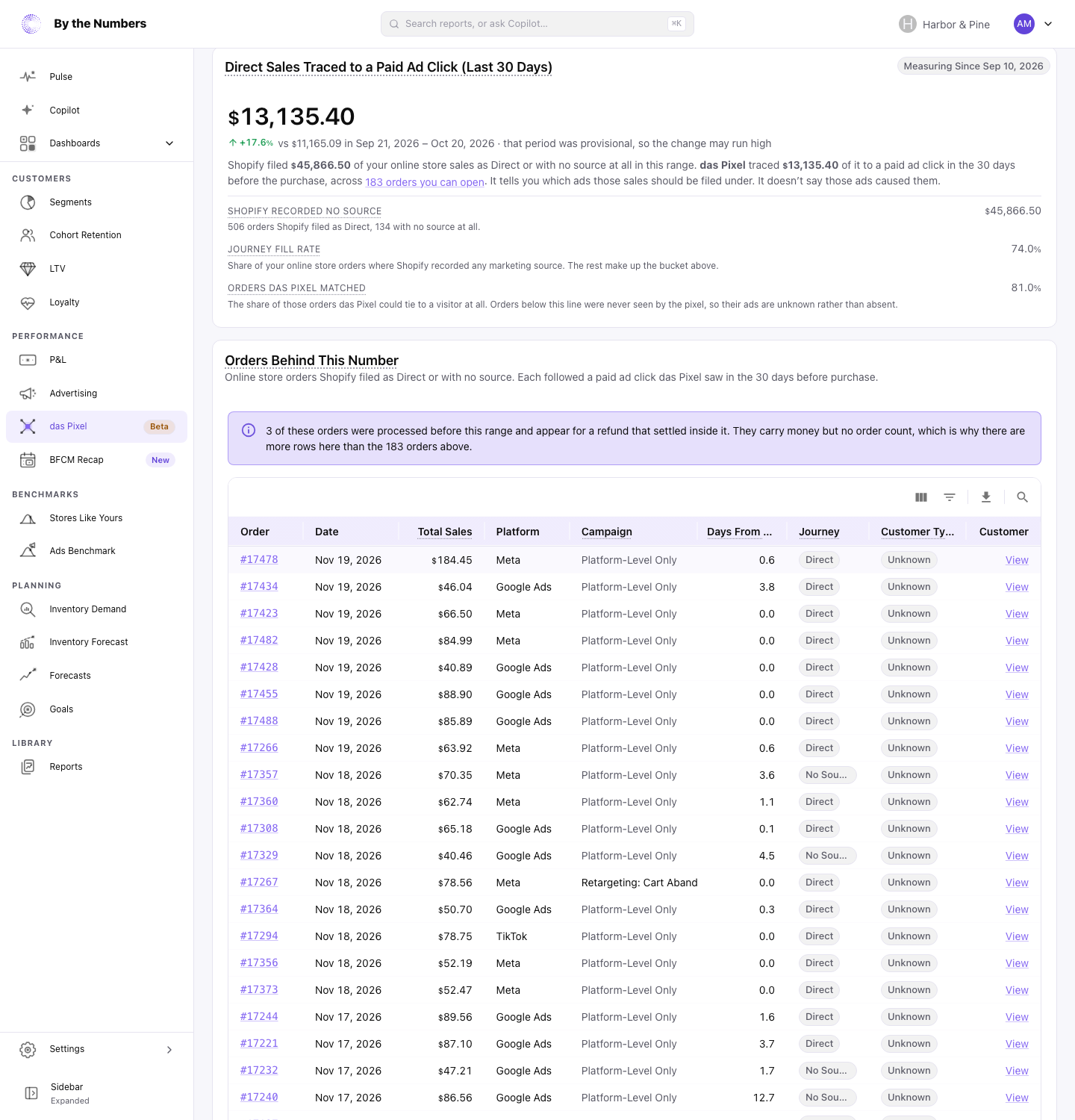
A traced click shows that the click came before the sale. It doesn't prove the ad caused it, since the shopper might have bought anyway. das Pixel also can't see ads someone only viewed, or visitors who declined cookies. It records from the day it connects, so its first 30 days are marked provisional.
Compare what you spent, what was measured, and what each platform claimed
Once your ad accounts are connected, Spend, Measured and Claimed by Platform puts three numbers side by side for each platform. You see what you spent, what das Pixel measured back, and what the platform claimed for itself. Each claim is labeled with what it counts, the gap is named, and five reasons two honest measurements differ are spelled out beneath it.
The measured column also shows how much came from customers' first orders, with the return on spend from those new customers alone. A toggle switches the comparison to the seven-day click window Meta uses by default, for a closer comparison with Meta's own figures.
Who Your Paid Clicks Brought In splits the revenue traced to each platform by whether the shopper had bought before. An ad platform can't report this: it knows the click, but your store knows the customer. It answers whether a platform found new buyers or was paid to reach people who were coming back anyway.
Send purchases, or profit, to Meta and Google Ads
das Pixel can send purchases to Meta and Google Ads from the server, to recover the 20–40% of conversions ad blockers eat. The platforms then see purchases their own browser tracking can miss. You choose where purchases go, a Google Ads account or the Meta pixel you shared, and each platform has its own switch. A purchase goes out only when the shopper accepted marketing tracking.
The das Pixel page opens with what it sent to each platform in the last 30 days, how many the platform accepted, and what was turned away and why. The steps to send conversions to your ad platforms walk through setup.
You can also switch on Send Profit Instead of Revenue. The purchases then carry what you made on each order, not what the customer paid, so the platforms learn to find your profitable customers. It needs product costs, and an order with a missing cost is sent at its revenue.
How to start the 42-day trial
On a current paid plan, start the trial yourself from the das Pixel page in the app, once per store. The 42 days start when the pixel connects, and nothing is charged until you add das Pixel to your plan. On Free or an earlier plan, pick one of the current paid plans first. Still on your By the Numbers free trial? Turn das Pixel on during setup, and its trial runs until day 42 or the end of your free trial, whichever is later.
Connecting takes one click and no theme code. Shopify may ask you to approve two permissions. The guide to connecting das Pixel covers the first test visit.
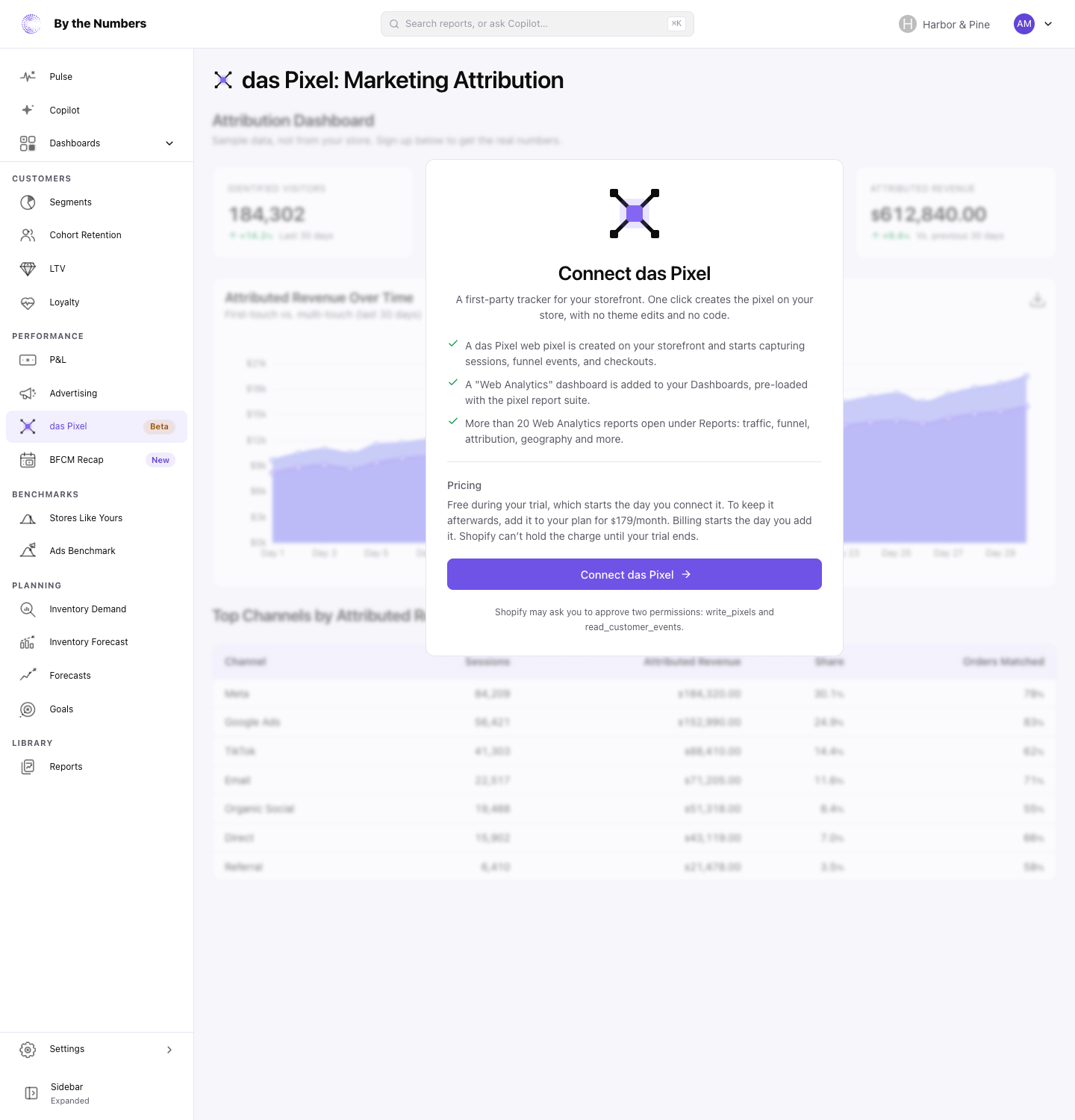
After the trial, the das Pixel add-on is priced by plan, from $39 to $299 a month, billed as one line with your plan. That page lists each plan's price. The add-on includes the MCP Server, which connects Claude or another AI assistant to your store's numbers. If the trial ends before you add it, the pixel keeps collecting for two more weeks with its numbers locked, so adding it in that time leaves no gap in your data.
Keep reading
If you want the full picture on ROAS and attribution, start with how to measure ROAS correctly.
Related reading: MER vs CAC: Which should guide your budget?, Attribution Window: One Day vs. Seven Days and Are your paid visits earning enough?.
By the Numbers builds this into the dashboard. See advertising ROI.
See what is working in your Shopify store
By the Numbers turns your store data into reports, segments, and forecasts.
- AI-powered analytics
- Customer segmentation
- Predictive forecasting
- One-click Shopify install