Compare Shopify customer loyalty groups

To compare Shopify customer loyalty groups, put their customer counts, orders, frequency, and sales side by side. Customer Loyalty in By the Numbers now downloads those group figures through Export CSV. Open the spreadsheet, compare the groups, and choose where your next retention effort belongs.
That helps when your team asks a practical question: should we thank frequent buyers or bring back customers who stopped ordering? A customer count alone leaves out part of the picture. Comparing it with orders and sales gives you more to discuss before choosing a message or an offer.
Compare buying behavior before choosing a reward
Start with how customers buy, then decide how to approach them. A large group deserves attention, but its size alone does not tell you which action makes sense. Look at orders, frequency, and sales alongside the customer count.
Loyalty groups describe purchase behavior. They are different from the membership levels customers earn in a rewards program. Someone's place in a rewards program answers a different question from whether they have bought recently or often.
The RFM analysis guide explains the broader approach. For this comparison, keep the question narrow: which group needs attention, and what would you ask those customers to do?
Be careful about the conclusion you draw from sales. A group contributing substantial sales may deserve a thank-you or early access to a new product. Those sales do not prove a discount caused people to return, or that another discount would pay for itself.
Download the loyalty group comparison
Open Customer Loyalty and choose Export CSV to take the comparison into a spreadsheet. The download includes the loyalty groups with their customers, orders, frequency, and sales. You can bring those figures into a planning document without copying them from the screen.
- Open Customers, then Loyalty.
- Choose Export CSV near the top of the page.
- Open the downloaded file in your spreadsheet app.
- Compare customer counts with orders, frequency, and sales before picking a group to work on.
CSV export requires a paid plan and your teammate's Export Data permission. If the control is unavailable to you, check your plan and permissions with the account owner.
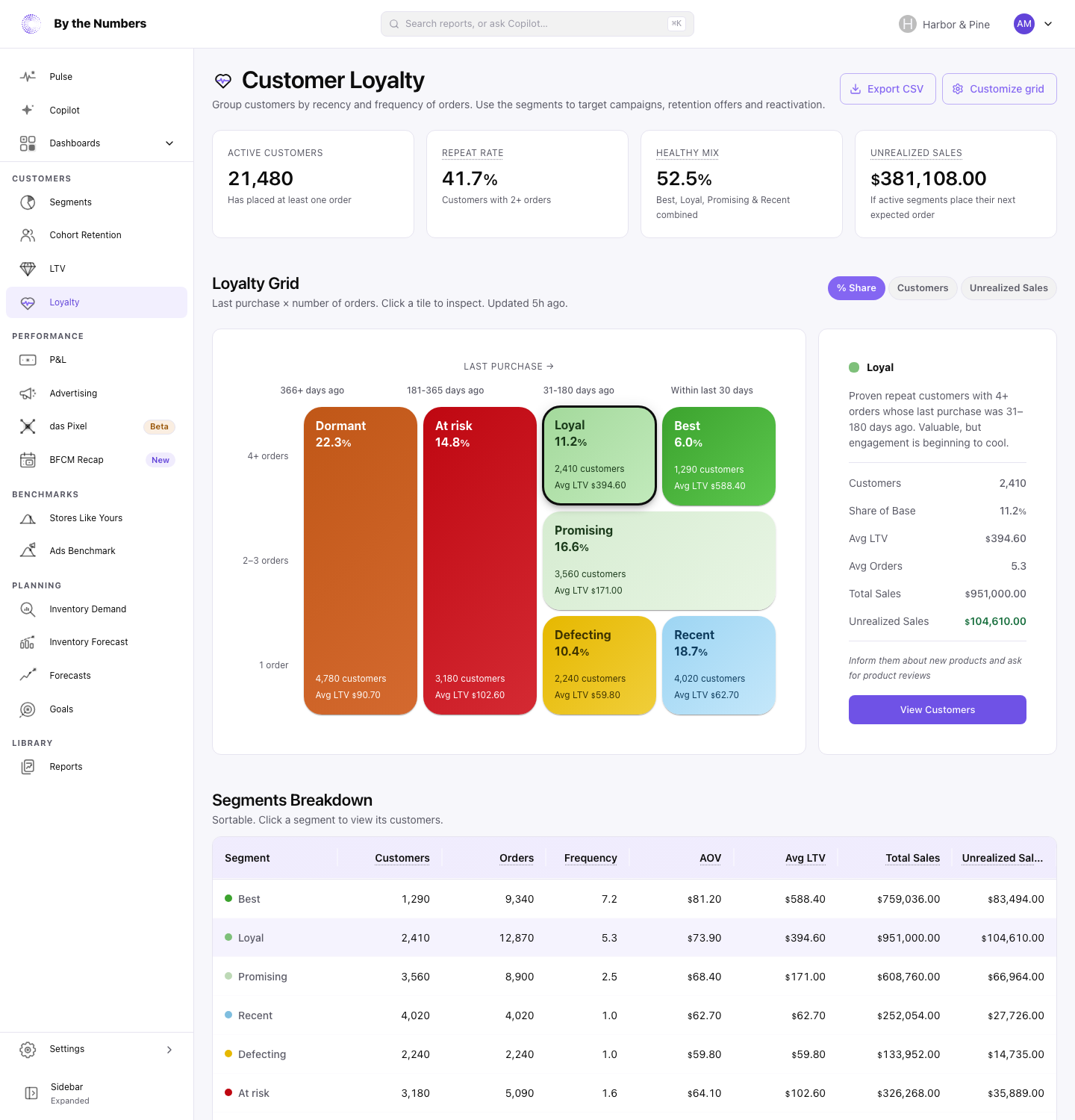
The Customer Loyalty help article explains the download and the page around it. Use it when you want the detailed steps or need to understand the columns in your file.
Treat the file as a summary of groups, rather than a list of individual customer contacts. Read the columns together. Customers tells you the size of the group. Orders and frequency help you compare its buying activity, while sales shows its contribution. Start with these fields rather than adding a separate worksheet for each possible retention question.
The loyalty matrix also lets you control the thresholds for your groups. Before sharing the file, make sure your team understands the group names you use. A familiar label can still mean different things to people planning different campaigns.
Choose one action from the spreadsheet
Use the comparison to choose a specific next step for one group. The export gives your team something concrete to discuss, but choosing a message still takes judgment. Consider what customers need and what your store can afford to offer.
For example, imagine a large group with fewer orders alongside a smaller group contributing substantial sales. These are different conversations. You might give the first group a reason to return and offer the second an early look at new stock.
That example is a planning choice, not a prediction of campaign results. Response depends on the message as well as the audience. Strong sales do not tell you how much margin remains after an offer.
For customers who stopped buying, use the distinction between lapsed and defecting customers to shape the message. For frequent buyers, the guide to setting VIP customer rules helps you choose who should receive special treatment.
Add a short note beside the group you choose: the proposed message, the person responsible, and what you will review afterward. Keep the original export as the reference for that discussion. Give the file a clear date and add your notes in separate columns. That keeps the report figures separate from your team’s proposed actions. If you offer a discount, include its cost when you review the response.
Finish the meeting with one group and one action assigned. The spreadsheet earns its place when it helps your team make that decision.
Keep reading
If you want the full picture on RFM and customer loyalty, start with how to run RFM on Shopify.
Related reading: Lapsed vs. Defecting Customers: How to Tell Them Apart, VIP customers on Shopify: Set your rules and Shopify Email Marketing: Segmentation Tips.
By the Numbers builds this into the dashboard. See the RFM matrix.
See what is working in your Shopify store
By the Numbers turns your store data into reports, segments, and forecasts.
- AI-powered analytics
- Customer segmentation
- Predictive forecasting
- One-click Shopify install